User Guide
CoursePilot is a desktop app for managing tutorial groups and students, optimized for use via a Command Line Interface (CLI) while still having the benefits of a Graphical User Interface (GUI). If you can type fast, CoursePilot can get your tutorial management tasks done faster than traditional GUI apps.
- Quick start
-
Features
- Viewing help :
help - Selecting a tutorial :
select - Listing tutorials or students :
list -
Adding a student or tutorial :
add - Editing a student :
edit - Locating students :
find -
Deleting a student or tutorial :
delete - Clearing all entries :
clear - Exiting the program :
exit - Command autocomplete
- Saving the data
- Editing the data file
- Viewing help :
- FAQ
- Known issues
- Command summary
Quick start
-
Ensure you have Java
17or above installed in your Computer.
Mac users: Ensure you have the precise JDK version prescribed here. -
Download the latest
.jarfile from the project releases. -
Copy the file to the folder you want to use as the home folder for your CoursePilot.
-
Open a command terminal,
cdinto the folder you put the jar file in, and use thejava -jar coursepilot.jarcommand to run the application.
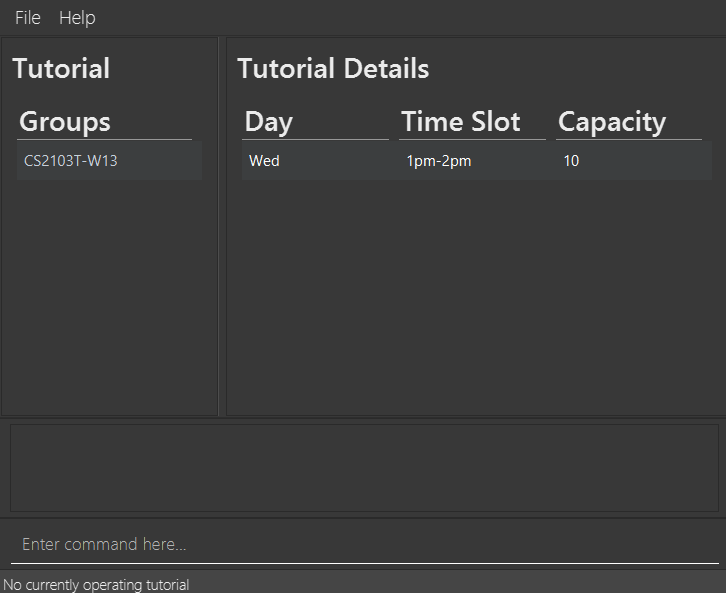
A GUI similar to the below should appear in a few seconds. Note how the app contains some sample tutorials and students.
-
Type the command in the command box and press Enter to execute it. e.g. typing
helpand pressing Enter will open the help window.
Some example commands you can try:-
list -tutorial: Lists all tutorials. -
select CS2103T-W12: Selects the tutorialCS2103T-W12as the current working tutorial. -
list -student: Lists all students in the selected tutorial. -
add -student /name John Doe /phone 98765432 /email johnd@example.com /matric A000000: Adds a student namedJohn Doeto the current tutorial. -
delete -student 3: Deletes the 3rd student shown in the current tutorial’s student list. -
exit: Exits the app.
-
-
Refer to the Features below for details of each command.
Features
 Notes about the command format:
-
Words in
UPPER_CASEare the parameters to be supplied by the user.
e.g. inadd -student /name NAME,NAMEis a parameter which can be used asadd -student /name John Doe. -
Items in square brackets are optional.
e.g./name NAME [/tag TAG]can be used as/name John Doe /tag friendor as/name John Doe. -
Items with
… after them can be used multiple times including zero times.
e.g.[/tag TAG]…can be used as ` ` (i.e. 0 times),/tag friend,/tag friend /tag familyetc. -
Parameters can be in any order.
e.g. if the command specifies/name NAME /phone PHONE_NUMBER,/phone PHONE_NUMBER /name NAMEis also acceptable. -
Extraneous parameters for commands that do not take in parameters (such as
help,exitandclear) will be ignored.
e.g. if the command specifieshelp 123, it will be interpreted ashelp. -
If you are using a PDF version of this document, be careful when copying and pasting commands that span multiple lines as space characters surrounding line-breaks may be omitted when copied over to the application.
 Tip: The Current Operating Tutorial
Many commands require you to first select a tutorial using the select command. The selected tutorial becomes your current operating tutorial. Commands that operate on students — add -student, delete -student, list -student, and find — all act within this tutorial. Use select TUTORIAL_CODE to set it. Running list -tutorial clears it.
Viewing help : help
Shows a message explaining how to access the help page.
Format: help
Selecting a tutorial : select
Sets a tutorial as the current operating tutorial. Once selected, student-level commands (add -student, delete -student, list -student, find) will operate within this tutorial.
Format: select TUTORIAL_CODE or select none
- The
TUTORIAL_CODEis case-insensitive. - The tutorial code must exactly match a tutorial already in the system (e.g.,
CS2103T-W12). - The tutorial remains active until you run another
selectcommand orlist -tutorial. - If the tutorial code is not found, an informational message is shown and the current operating tutorial is unchanged.
- Use
select noneto clear the current operating tutorial without selecting a new one.
Examples:
-
select CS2103T-W12: Selects the tutorial with codeCS2103T-W12. -
select cs2103t-w12: Also selects the same tutorial (case-insensitive). -
select none: Clears the current operating tutorial.
Listing tutorials or students : list
Lists either all available tutorials or students in the currently selected tutorial.
Format: list -tutorial or list -student
You must specify either -tutorial or -student.
-
list -tutorial: Shows all available tutorials and their details (day, time slot, capacity). Also clears the current operating tutorial — you will need toselectagain before running student commands. -
list -student: Shows all students enrolled in the currently selected tutorial.- Requires a tutorial to be selected first (use
selectcommand). - If no tutorial is selected, an error message will be displayed.
- Requires a tutorial to be selected first (use
Examples:
-
list -tutorial: Displays all tutorials. -
select CS2103T-W12followed bylist -student: Displays all students in the CS2103T-W12 tutorial.
Adding a student or tutorial : add
Adds a student to the current operating tutorial, or adds a new tutorial to the system.
Add a student: add -student
Format: add -student /name NAME /phone PHONE_NUMBER /email EMAIL /matric MATRICNUMBER [/tag TAG]…
- Requires a tutorial to be selected first.
- All four fields (
/name,/phone,/email,/matric) are mandatory. - A student can have any number of tags (including 0).
- If the student does not yet exist in the system, they are also added to the global student list. If they already exist (matched by name or matric number), they are linked to the current tutorial without creating a duplicate.
- A student cannot be added to the same tutorial twice.
Field Constraints:
- Name: Must contain only alphabetic characters and spaces. Cannot be blank. Maximum 100 characters.
- Phone: Must contain only digits and be at least 3 digits long.
-
Email: Must follow standard email format (e.g.,
student@u.nus.edu). -
Matric Number: Must follow the format
Axxxxxxwherexis a digit (e.g.,A000000,A123456). Must be exactly 7 characters: the letterAfollowed by 6 digits. - Tag: Optional. Each tag must be a single alphanumeric word.
Examples:
add -student /name John Doe /phone 98765432 /email johnd@example.com /matric A000000add -student /name Betsy Crowe /tag friend /email betsycrowe@example.com /matric A000001 /phone 1234567 /tag student
Add a tutorial: add -tutorial
Format: add -tutorial /code CODE /day DAY /timeslot TIMESLOT /capacity CAPACITY
- All four fields are mandatory.
- Does not require a tutorial to be selected first.
- The tutorial code must be unique.
Field Constraints:
- Code: Must contain only alphanumeric characters, hyphens, and underscores. Cannot be blank.
- Day: Must be one of: Mon, Tue, Wed, Thu, Fri, Sat, Sun (case-sensitive, first letter capitalised).
-
TimeSlot: Must follow the format
XX:XX-XX:XXwhereXis a digit (e.g.,13:00-14:00). Start time must be before end time. Time is in 24-hour format. - Capacity: Must be a positive integer between 1 and 1000.
Examples:
add -tutorial /code CS2103T-W12 /day Wed /timeslot 10:00-11:00 /capacity 10add -tutorial /code CS2103T-T01 /day Thu /timeslot 14:00-15:00 /capacity 15
Editing a student : edit
Edits an existing student’s details.
Format: edit INDEX [/name NAME] [/phone PHONE] [/email EMAIL] [/matric MATRICNUMBER] [/tag TAG]…
- Edits the student at the specified
INDEX. The index refers to the index number shown in the currently displayed student list. The index must be a positive integer 1, 2, 3, … - At least one of the optional fields must be provided.
- Existing values will be updated to the input values.
- When editing tags, the existing tags of the student will be replaced entirely (not added to).
- You can remove all the student’s tags by typing
/tagwithout specifying any tag after it. - The edit applies globally — it updates the student’s details everywhere in the system.
Examples:
-
edit 1 /phone 91234567 /email johndoe@example.com: Edits the phone number and email address of the 1st student. -
edit 2 /name Betsy Crower /tag: Edits the name of the 2nd student and clears all existing tags.
Locating students : find
Finds and lists students in the currently selected tutorial based on specified criteria.
Format: find KEYWORD [MORE_KEYWORDS]…
Or with a field flag: find /phone KEYWORD
|
find /email KEYWORD |
find /matric KEYWORD |
- Requires a tutorial to be selected first.
-
Default (name search):
find KEYWORD [MORE_KEYWORDS]— returns students whose name contains any of the keywords as a substring. Case-insensitive. -
Phone search:
find /phone KEYWORD— returns students whose phone number starts with any of the given keywords. -
Email search:
find /email KEYWORD— returns students whose email address contains any of the given keywords. Case-insensitive. -
Matric search:
find /matric KEYWORD— returns students whose matric number starts with any of the given keywords. Case-insensitive. - Multiple keywords are OR-matched: students matching at least one keyword are returned.
- Only students enrolled in the current operating tutorial are searched.
Examples:
-
find John: Finds all students in the current tutorial whose name contains “John”. -
find alex david: Returns students whose name contains “alex” or “david”. -
find /email u.nus.edu: Finds all students whose email containsu.nus.edu. -
find /phone 987: Finds students whose phone number starts with987. -
find /matric A000: Finds students whose matric number starts withA000.
Deleting a student or tutorial : delete
Deletes a student from the current tutorial, or deletes a tutorial from the system.
Delete a student: delete -student
Format: delete -student INDEX
- Requires a tutorial to be selected first.
- The index refers to the position in the current tutorial’s student list. The index must be a positive integer 1, 2, 3, …
- The student is removed from the current tutorial.
- If the student is not enrolled in any other tutorial, they are also removed from the global student list entirely.
- If the student is enrolled in another tutorial, they remain in the system and in those other tutorials.
Examples:
-
delete -student 2: Deletes the 2nd student in the current tutorial. -
find Johnfollowed bydelete -student 1: Deletes the 1st student in the results of thefindcommand.
Delete a tutorial: delete -tutorial
Format: delete -tutorial INDEX
- Does not require a tutorial to be selected first.
- The index refers to the position in the displayed tutorial list. The index must be a positive integer 1, 2, 3, …
- The tutorial is removed from the system.
- Students who were in the deleted tutorial are not automatically removed from the global student list.
Examples:
-
delete -tutorial 1: Deletes the 1st tutorial in the list.
Clearing all entries : clear
Clears all students and all tutorials from the system.
Format: clear
 Caution:
This command permanently deletes all students and all tutorials. This action cannot be undone. Use with care.
Caution:
This command permanently deletes all students and all tutorials. This action cannot be undone. Use with care.
Exiting the program : exit
Exits the program.
Format: exit
Command autocomplete
CoursePilot provides context-aware autocomplete suggestions as you type in the command box. Suggestions appear in a dropdown menu below the input field.
-
Command words: Start typing and matching commands (e.g.,
add,delete,list) are suggested. -
Flags: After typing a command word, relevant flags are suggested (e.g.,
-student,-tutorialforadd). -
Prefixes: After selecting a flag, the required parameter prefixes are suggested (e.g.,
/name,/phone,/email,/matricforadd -student). Already-used prefixes are excluded from suggestions, except/tagwhich can be used multiple times.
Keyboard shortcuts:
- Tab : Accepts the first suggestion.
- Escape : Dismisses the suggestion menu.
- You can also click on any suggestion to select it.
Saving the data
CoursePilot automatically saves all data after any command that modifies data. There is no need to save manually.
The data is saved in a JSON file located at [JAR file location]/data/coursepilot.json.
Editing the data file
Advanced users can directly edit the data file to make bulk changes. The data file is stored as [JAR file location]/data/coursepilot.json in JSON format.
Caution:
If your changes to the data file make its format invalid, CoursePilot will discard all data and start with an empty data file on the next run. Ensure you make a backup before editing and thoroughly validate the JSON format after making changes.Furthermore, manual edits can cause CoursePilot to behave unexpectedly if invalid data is introduced. Only edit the data file if you are confident in your ability to maintain valid JSON structure and data constraints.
FAQ
Q: How do I transfer my data to another computer?
A: Install CoursePilot on the other computer and overwrite the empty data file it creates with the coursepilot.json file from your previous installation.
Q: What happens if I forget to select a tutorial before using add -student, delete -student, list -student, or find?
A: CoursePilot will display an error message: “No current operating tutorial selected. Use select first.” Use the select command to choose a tutorial before retrying.
Q: Can I add a student without selecting a tutorial first?
A: No. Students must be added through a tutorial using add -student while a tutorial is selected. Use select TUTORIAL_CODE first, then add -student.
This should make sense because we want to add students to a tutorial rather than leave them hanging.
Q: What happens to a student’s data when I delete them from a tutorial?
A: If the student is enrolled in other tutorials, they remain in the system. If the deleted tutorial was their only one, they are removed from the global student list as well.
Q: Does deleting a tutorial delete its students?
A: No. Deleting a tutorial removes the tutorial itself, but all students who were in that tutorial remain in the global student list.
Q: What should I do if I enter an invalid command?
A: CoursePilot will display an error message indicating what went wrong. Use the help command to view the correct command format.
Known issues
-
When using multiple screens, if you move the application to a secondary screen, and later switch to using only the primary screen, the GUI will open off-screen. The remedy is to delete the
preferences.jsonfile created by the application before running the application again. -
If you minimize the Help Window and then run the
helpcommand (or use theHelpmenu, or the keyboard shortcutF1) again, the original Help Window will remain minimized, and no new Help Window will appear. The remedy is to manually restore the minimized Help Window.
Command summary
| Action | Format, Examples |
|---|---|
| Add student |
add -student /name NAME /phone PHONE_NUMBER /email EMAIL /matric MATRICNUMBER [/tag TAG]… e.g., add -student /name James Ho /phone 22224444 /email jamesho@example.com /matric A000000 /tag friend
|
| Add tutorial |
add -tutorial /code CODE /day DAY /timeslot TIMESLOT /capacity CAPACITY e.g., add -tutorial /code CS2103T-W12 /day Wed /timeslot 10:00-11:00 /capacity 10
|
| Clear | clear |
| Delete student |
delete -student INDEX e.g., delete -student 3
|
| Delete tutorial |
delete -tutorial INDEX e.g., delete -tutorial 1
|
| Edit |
edit INDEX [/name NAME] [/phone PHONE_NUMBER] [/email EMAIL] [/matric MATRICNUMBER] [/tag TAG]… e.g., edit 2 /name James Lee /email jameslee@example.com
|
| Find |
find KEYWORD [MORE_KEYWORDS]… or find /phone KEYWORD or find /email KEYWORD or find /matric KEYWORD e.g., find James, find /email u.nus.edu
|
| List students | list -student |
| List tutorials | list -tutorial |
| Select |
select TUTORIAL_CODE or select none e.g., select CS2103T-W12, select none
|
| Help | help |
| Exit | exit |